Help Center
The Taxi Drivers Statement (DSE) feature automates the management of driver statements and invoices, allowing you to track payments to drivers or amounts owed by drivers on a weekly basis. This guide explains the process for setting up, generating, and managing driver statements efficiently.
Key Features of Taxi Drivers Statement (DSE):
- Automated Statement Generation:
- Statements are automatically generated using company and driver data stored in the system.
- Weekly Automation:
- Statements can be sent to drivers weekly, reducing manual effort.
- Time Savings:
- Saves up to 100 hours per month for fleets with 100 vehicles.
- Custom Rules:
- Tailor rules for individual drivers, accounts, or all drivers to ensure compliance with company policies.
Steps to Configure and Use DSE
Step 1: Define Accounting Rules
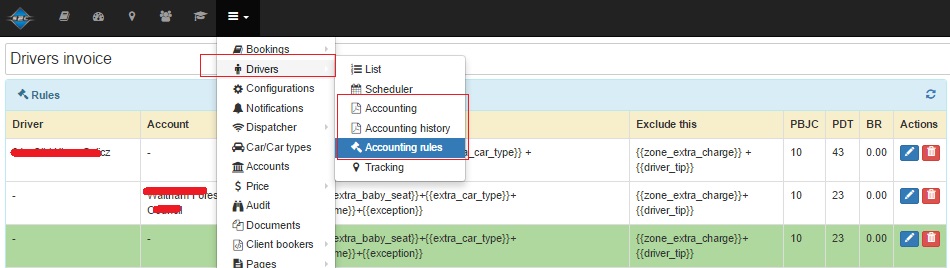
- Navigate to System Configuration → Drivers → Accounting Rules to set up rules for driver statements.
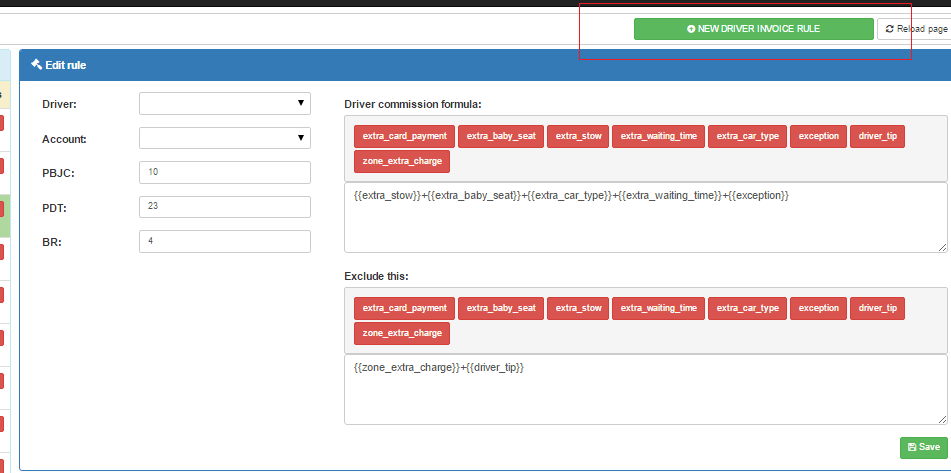
- Fill out the following fields to create a rule:
- Driver Field: Select a specific driver or leave blank to apply to all drivers.
- Account Field: Select an account (e.g., Government authority accounts like NHS may require special VAT rules).
- PBJC (Price Base Journey Cost): Set a percentage for the driver’s earnings based on the booking price.
- Example: Booking Base Price = £100; PBJC = 10%. Driver’s earnings = £100 – 10% = £90.
- PDT (Percent Driver Total): Specify the company’s commission from the driver’s earnings.
- Example: Driver Earning = £100; PDT = 23%. Commission = £23.
- BR (Booking Rate): Set a flat fee per booking if not using commission-based charges.
- Example: BR = £4 per booking.
Step 2: Customize Commission and Exclusion Rules
- Define a Driver Commission Formula to automate earnings calculations.
- Use the Exclude This field to specify items exempt from commission charges (e.g., driver tips, parking fees).
- Example Calculation:
- Booking Total Price: £100 (including extras and tips).
- Company Income: £18 based on the commission formula.
- Driver Earnings: £100 – £18 = £72.
- Example Calculation:
Step 3: Automate Statement Generation
- Once a booking is marked as Done, the system automatically calculates the driver statement for that job.
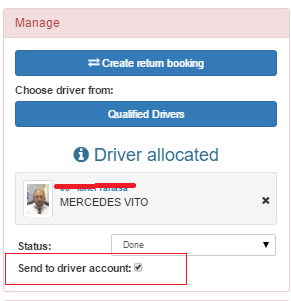
- To include or exclude a booking from a driver’s account, update the booking and toggle the Send to Driver Account flag.
Step 4: Enable Driver Delay Penalties
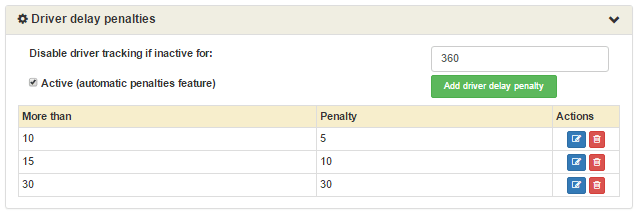
- Navigate to System Configuration → Configuration → Driver Delay Penalties to set penalties for late pickups.
- Example:
- £5 penalty for delays over 10 minutes.
- £10 penalty for delays over 15 minutes.
- £30 penalty for delays over 30 minutes.
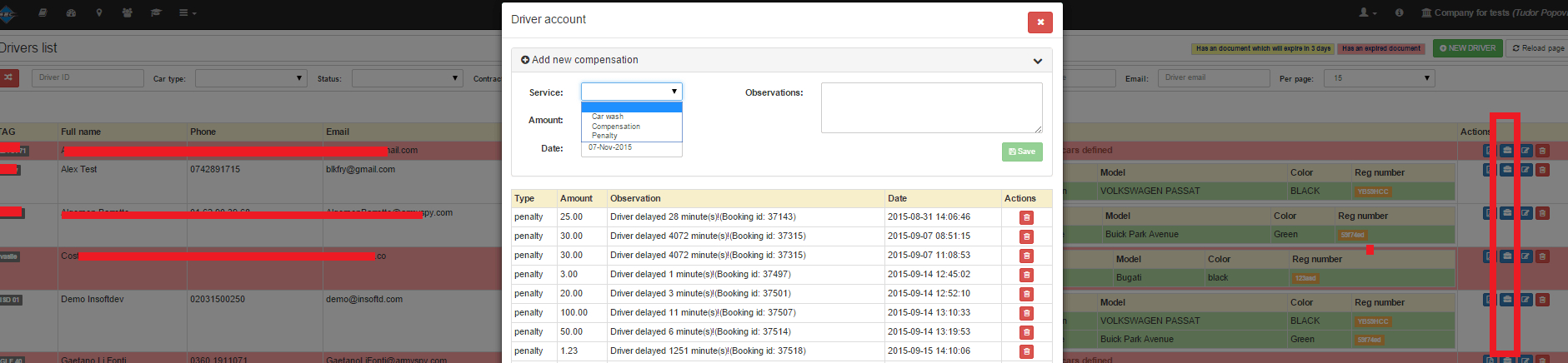
Step 5: Add Manual Penalties or Compensations
- Go to Drivers → Drivers List → Driver Account Button.
- Add penalties or compensations manually for a specific date with explanatory notes.
- These changes will reflect in the driver’s statement.
Step 6: Generate Driver Invoice Reports
- Access System Configuration → Drivers → Driver Statement to generate driver invoice reports.
- Select a period and the relevant driver, and click Generate.
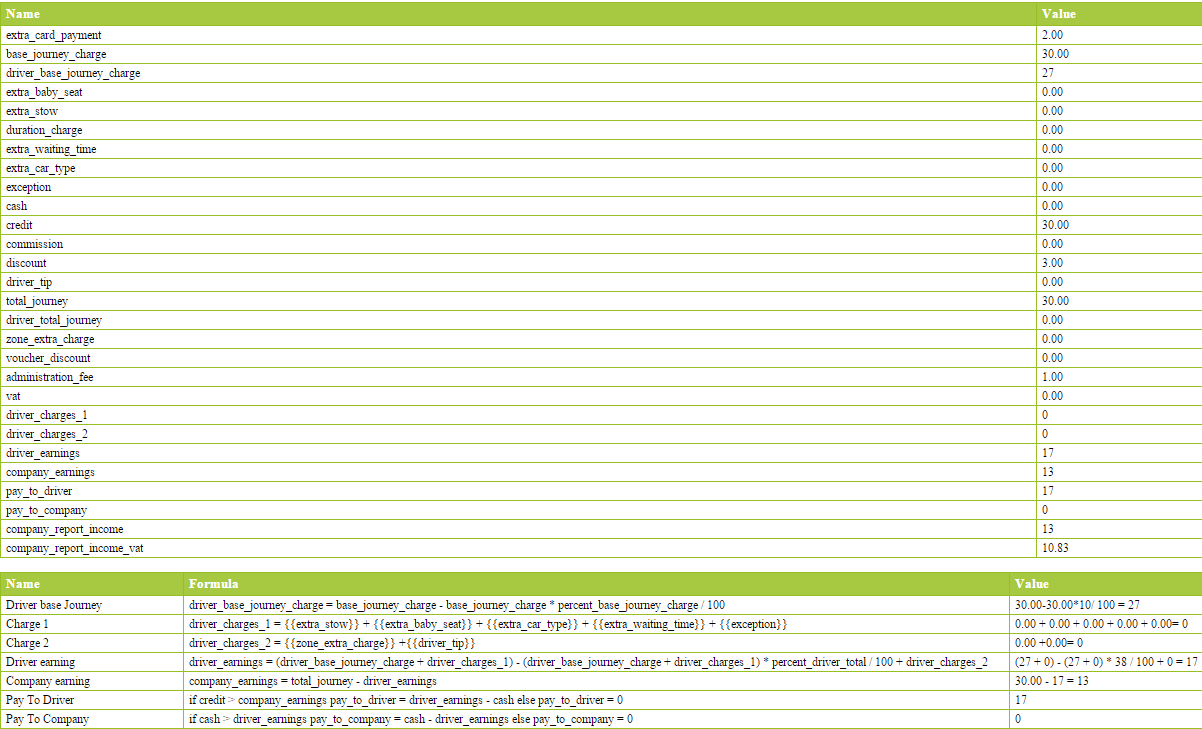
Step 7: Recalculate Driver Statements
- If booking prices are updated after statements have been processed, recalculate the statements:
- Select Action: Recalculate Statements and choose the period and driver.
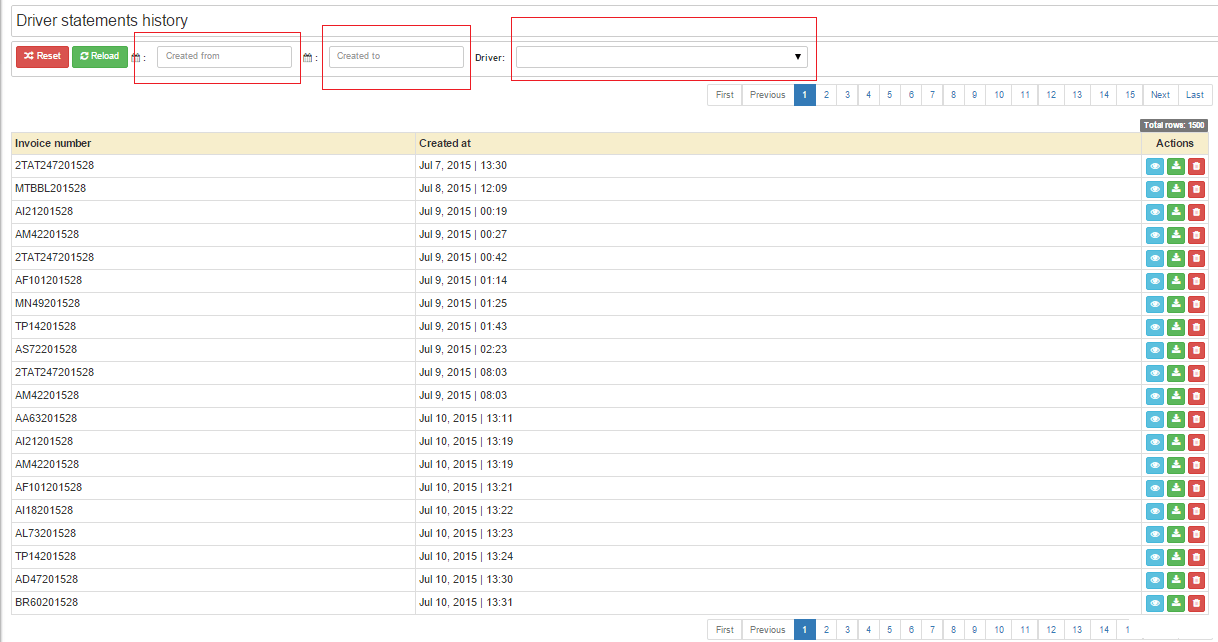
Step 8: Access and Manage Driver Statement History
- Navigate to System Configuration → Drivers → Accounts History to:
- View, download, or delete past invoices.
- Maintain a clear history of all processed statements.
Benefits of Using Taxi Drivers Statement (DSE):
- Automated Processes: Reduces manual work and ensures accuracy.
- Policy Compliance: Supports delay penalties and booking inclusions/exclusions.
- Comprehensive History: Keeps a full record of all generated statements and invoices.
- Customizable Rules: Allows tailored rules for individual drivers or accounts.